
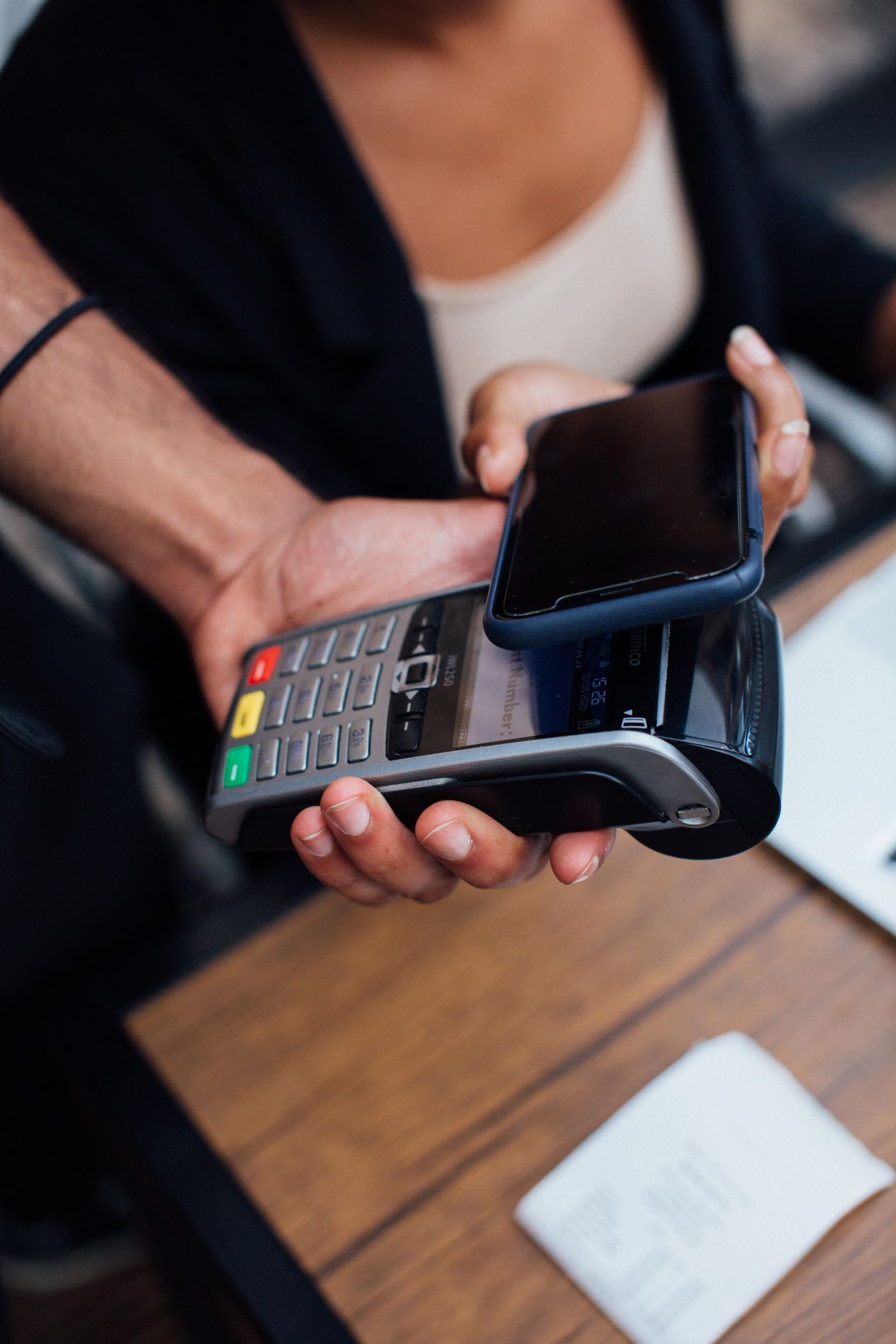
Short answer: You can create an eTIMS invoice from a phone using an eligible KRA eCitizen or USSD workflow, or connected software such as Risiti. On eCitizen, activate invoicing, enter the customer and items, review the sale and download the generated receipt. On *222#, use KRA Services and the eTIMS sales-invoice flow, then retrieve the receipt from the transaction's SMS link.
Step-by-Step
1. Open KRA eCitizen in your phone browser
Visit ecitizen.kra.go.ke and sign in through eCitizen using the account authorized for the taxpayer. You do not need a separate invoicing app for this browser route.
2. Activate the invoicing service
Open Invoicing (eTIMS). First-time users review the declarations and activate e-invoicing. Confirm that the seller shown is the intended taxpayer.
3. Create the invoice and customer record
Open Create Sales Invoice. Select or add the customer; validate their supplied PIN when recording a business buyer. KRA's guide also includes a customer-without-PIN option where appropriate.
4. Add the actual goods or services
Enter the description, quantity and price per unit. Check any adjustment and the applicable tax treatment, then compare the preview with the agreed sale amount.
5. Confirm once and check the result
Create the invoice when the details are correct. If your connection drops, check the existing invoice history before repeating the sale.
6. Download and share the receipt
Save the generated invoice, check its seller, buyer, amount and returned eTIMS details, then send the unchanged file to the correct customer.
Choose a Phone Invoicing Route
| Route | What you need | How you obtain the document |
|---|---|---|
| eTIMS Lite on eCitizen | An eligible taxpayer, eCitizen account and browser internet connection | Download from the completed invoice screen. |
| eTIMS Lite through *222# | An eligible individual or sole proprietor and a phone with USSD service | Use the receipt link sent by SMS; web access is needed to open and download it. |
| eTIMS Non VAT app | The appropriate official app and taxpayer setup | Follow the current app's receipt options; this guide does not verify its current screens. |
| Risiti | A Risiti account with the business and KRA connection configured | Use the accepted invoice's PDF or sharing action. |
Basic Phone: Create the Invoice with *222#
KRA's 2026 guide starts with KRA Services, then eTIMS and Sales Invoice. New users complete the identity and registration prompts; returning users select the taxpayer or associated business before entering the customer, product name, quantity and unit price.
Review the displayed invoice details and confirm. The guide shows an invoice-generated result followed by an SMS receipt link. A basic phone can run the USSD session, but you need web access on a suitable device to open the receipt link and download the document. Keep the SMS and check for the existing result before repeating an interrupted submission.
A Worked Invoice You Can Check Before Submitting
If the agreed sale is two service sessions at KES 2,500 each with no discount or additional charge, the line total is KES 5,000. Enter 2 as the quantity and 2,500 as the price per session; entering 5,000 as the unit price would double the amount. Confirm the applicable tax treatment for your actual sale before accepting the final preview.
Save and Share a Receipt on Android or iPhone
- ✓Use the completed invoice's download action. If the file opens as a preview, use the browser or device share control to save a copy.
- ✓Find the file in your browser's downloads list or the device's Files app. Check the filename and open the PDF before sending it.
- ✓Compare the seller, customer where recorded, items and total with the transaction. Follow the invoice's verification route if you need to check its returned details.
- ✓Attach the unchanged PDF or send the intended secure receipt link to the correct buyer by WhatsApp or email. Store a business copy as well.
Using Risiti from Your Phone
In Risiti, sign in with phone OTP, complete the business and KRA connection, then open New Invoice. Add the buyer, goods or services and payment method, review the amount and submit. Once the invoice is accepted, use its PDF or sharing action.
Keep a pending or failed invoice record while checking its result. An offline queue or a locally saved draft is not the final accepted tax invoice. If you discover an error after acceptance, use the issuing solution's linked correction workflow.
KRA's eCitizen workflow already includes customer records, item records and receipt downloads. Compare any paid product using the additional controls your business needs, such as status handling, reporting and staff workflows, rather than assuming those basic features require a separate app.
When the Phone Workflow Gets Stuck
| Problem | Next action |
|---|---|
| Login or OTP fails | Check whether you are using eCitizen or taxpayer-portal credentials; use the recovery instructions for that account. |
| Connection drops after submission | Look for the existing invoice or SMS result before creating another sale. |
| PDF cannot be found | Check browser downloads and device storage, then reopen the completed invoice to download it again. |
| Buyer or amount is wrong | Correct it before submission; after acceptance, use the original solution's supported credit-note process. |
Official sources
Official guidance and legislation used to prepare this guide.

Frequently asked questions
Open a question to read the answer.
Do I need to install an app to create an eTIMS invoice?
No app installation is required for the eCitizen browser route or the *222# USSD route. Eligibility and account setup still apply. Risiti also runs in a browser.
Can I create an invoice without a smartphone?
KRA provides an eTIMS Lite USSD route through *222# for individuals and sole proprietors. You need internet access on a suitable device to open the resulting web receipt link and download the document.
Can I share the eTIMS invoice through WhatsApp?
Yes. Share the completed, checked PDF or the intended receipt link with the buyer. WhatsApp delivers the document; it does not turn a pending draft into a completed eTIMS invoice.
Updated: 14 Sept 2026. Source-check scope and limitations, where recorded, appear below. This guide is not tax or legal advice. Confirm unusual cases with KRA or a qualified tax professional.
Keep reading
Selected from the same guide librarySource check: . Published eCitizen and USSD phone workflows, channel selection and separation from Risiti App.
No live taxpayer submission or physical-device test was performed; the procedure is based on the linked official guides.
What changed in this review
- Replaced unsupported speed comparisons with separate official-channel and Risiti paths.
- Added receipt-retrieval and correction handoffs with no invented app screens.